
Best Interior Paint Visualizers (2026 Comparison)
Compare the top interior paint color visualizers. We test Behr ColorSmart, Sherwin-Williams, Benjamin Moore, PPG, Farrow & Ball, Hover, and Housepaint AI across walls, cabinets, trim, ceilings, windows, and doors.
Interior painting is the most popular home improvement project in America—and the one where color choice creates the most daily impact. You live inside these colors. A single room costs $300-$800 to paint professionally, and a full interior runs $5,000-$15,000. But interior projects involve more than just walls: cabinets, trim, ceilings, windows, and doors all contribute to the overall look.
Paint color visualizers can help you see how different colors will work across all these surfaces before you commit. We tested the leading options across six key interior elements to find which ones handle the full complexity of interior visualization.
Quick Comparison: Interior Element Support
| Feature | Housepaint AI | Behr ColorSmart | Benjamin Moore | SW Color Visualizer | SW Color Expert | PPG | Farrow & Ball | Hover |
|---|---|---|---|---|---|---|---|---|
| Walls | Yes | Yes (manual) | Yes (manual) | Yes (manual) | Yes | Yes (slow) | Yes | Yes |
| Cabinets | Yes | Limited | Limited | Limited | No (walls only) | Limited | No (walls only) | Limited |
| Trim | Yes | Limited | Limited | Limited | No (walls only) | Limited | No (walls only) | Limited |
| Ceilings | Yes | Limited | Limited | Limited | No (walls only) | Limited | No (walls only) | Limited |
| Windows | Yes | Limited | Limited | Limited | No (walls only) | Limited | No (walls only) | Limited |
| Doors | Yes | Limited | Limited | Limited | No (walls only) | Limited | No (walls only) | Limited |
| Mobile App | Web, iOS & Android | Web only | Web only | Web only | iOS & Android | Web only | Web only | Web only |
| Auto-Detection | Yes | No | No | No | Yes | No | Yes | Yes |
| Light Accuracy | High | Low | Low | Low | Medium | Low | Medium-High | Medium |
| Paint Precision | High | Low | Low | Low | Medium | Low | Medium | Medium |
| Color Brands | Multiple | Behr only | BM only | SW only | SW only | PPG only | F&B only | Limited |
"Limited" means the tool's manual painting tools can technically color any area you click on, but there is no automatic detection of that element. "No" means the tool explicitly does not support that element.
The Interior Visualization Challenge
Interior projects involve multiple surfaces that all interact in a shared space:
- Walls: The dominant surface—but they share the room with everything else
- Cabinets: Kitchen and bathroom cabinets are among the most transformative paint projects
- Trim: Baseboards, crown molding, window casings, and door frames tie the room together
- Ceilings: Often white, but colored ceilings are increasingly popular for dramatic effect
- Windows: Interior window frames and mullions create contrast and define views
- Doors: Interior doors can match trim or serve as accent elements
The best interior visualizer needs to let you experiment with colors on each surface while keeping furniture, flooring, and other fixed elements unchanged.
The Visualizers Tested
Housepaint AI
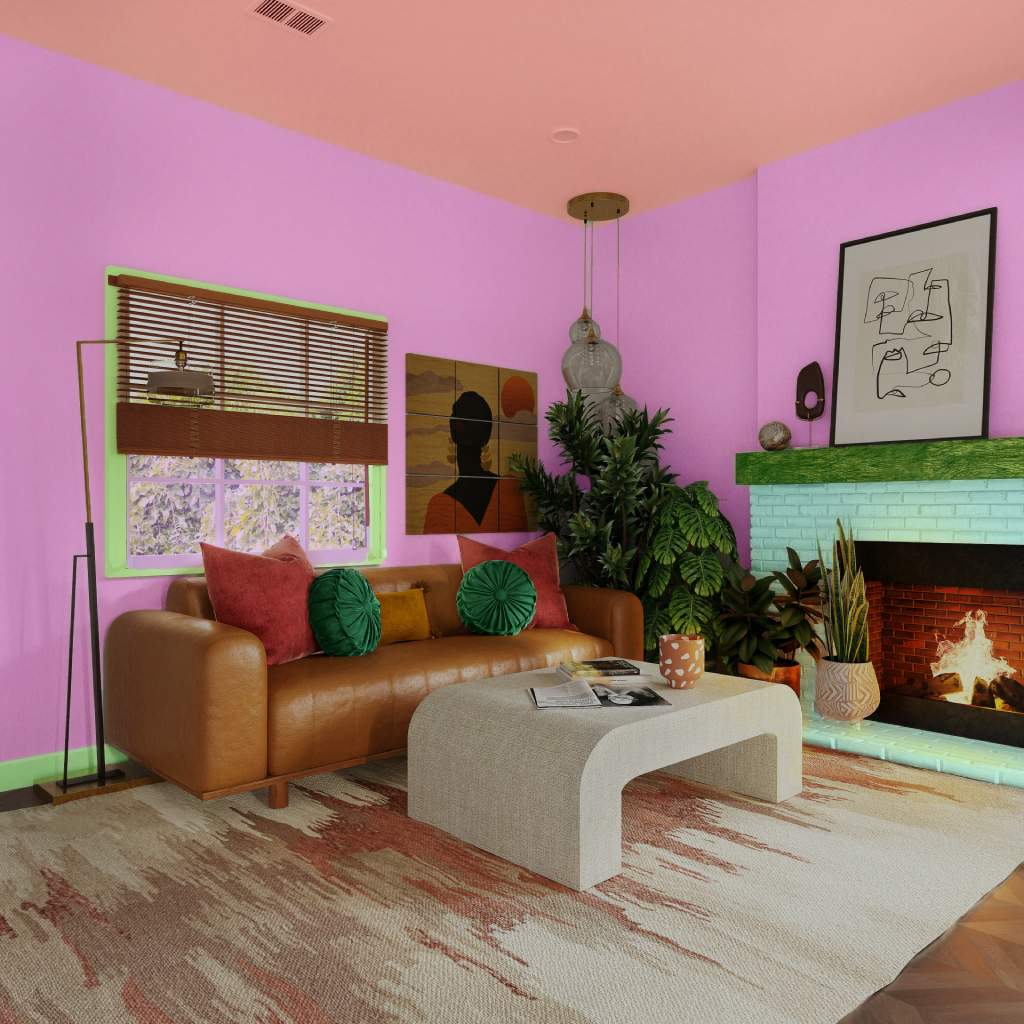
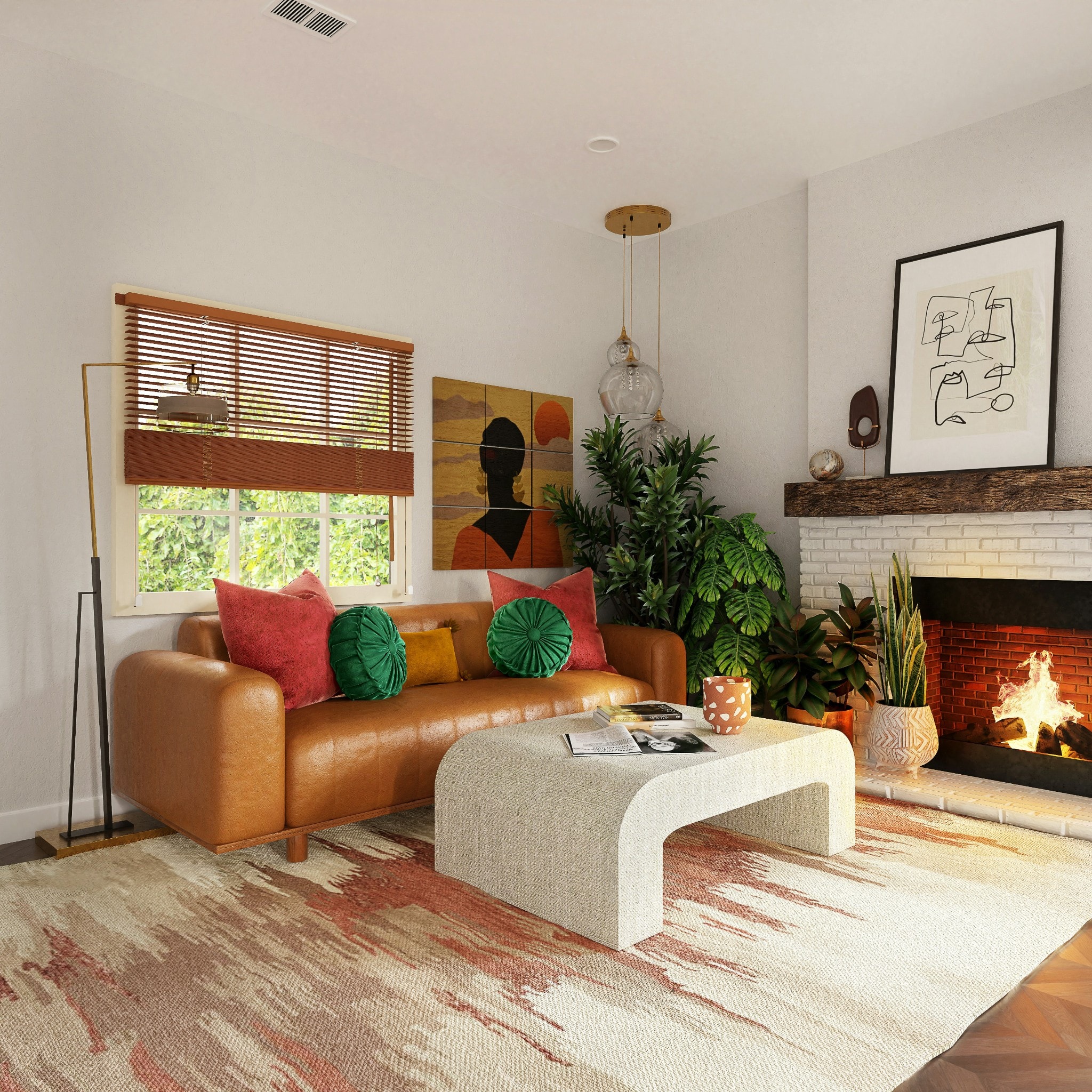
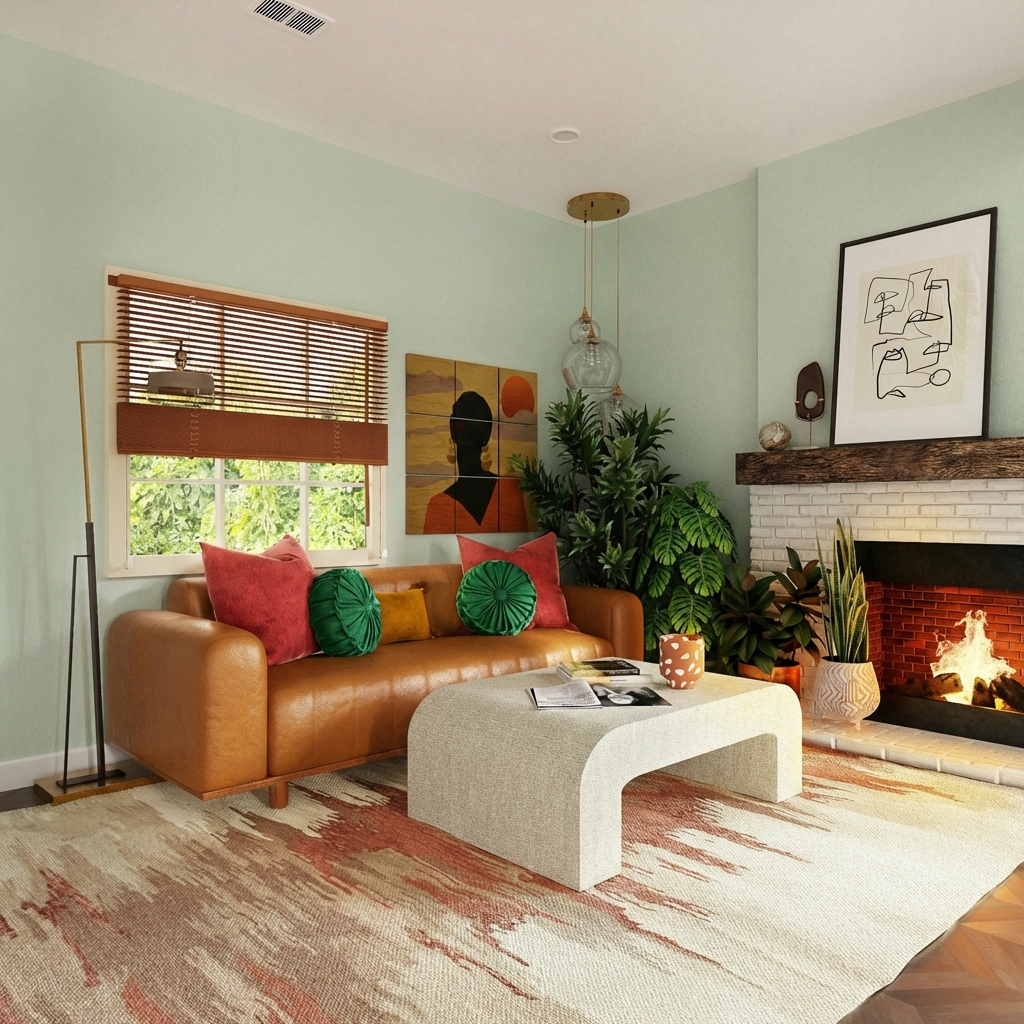
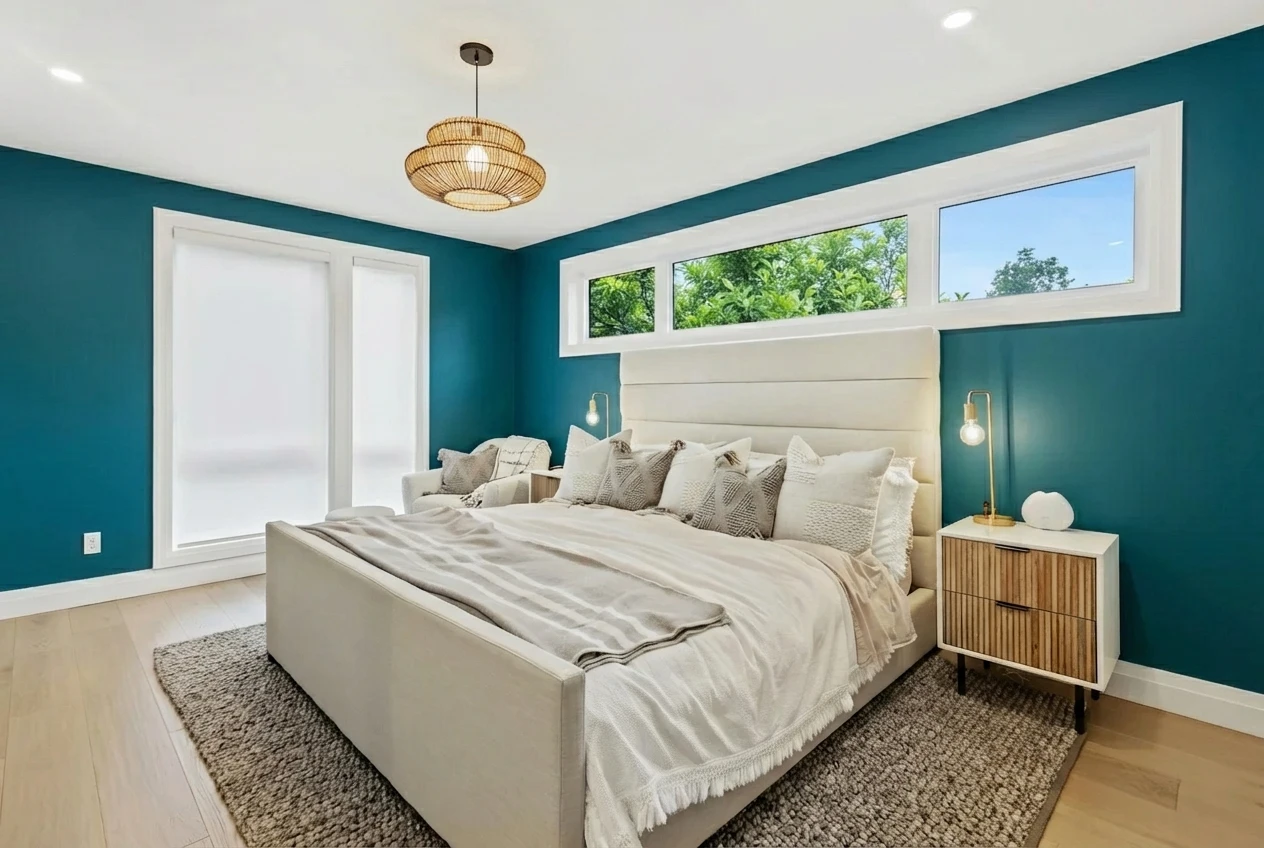
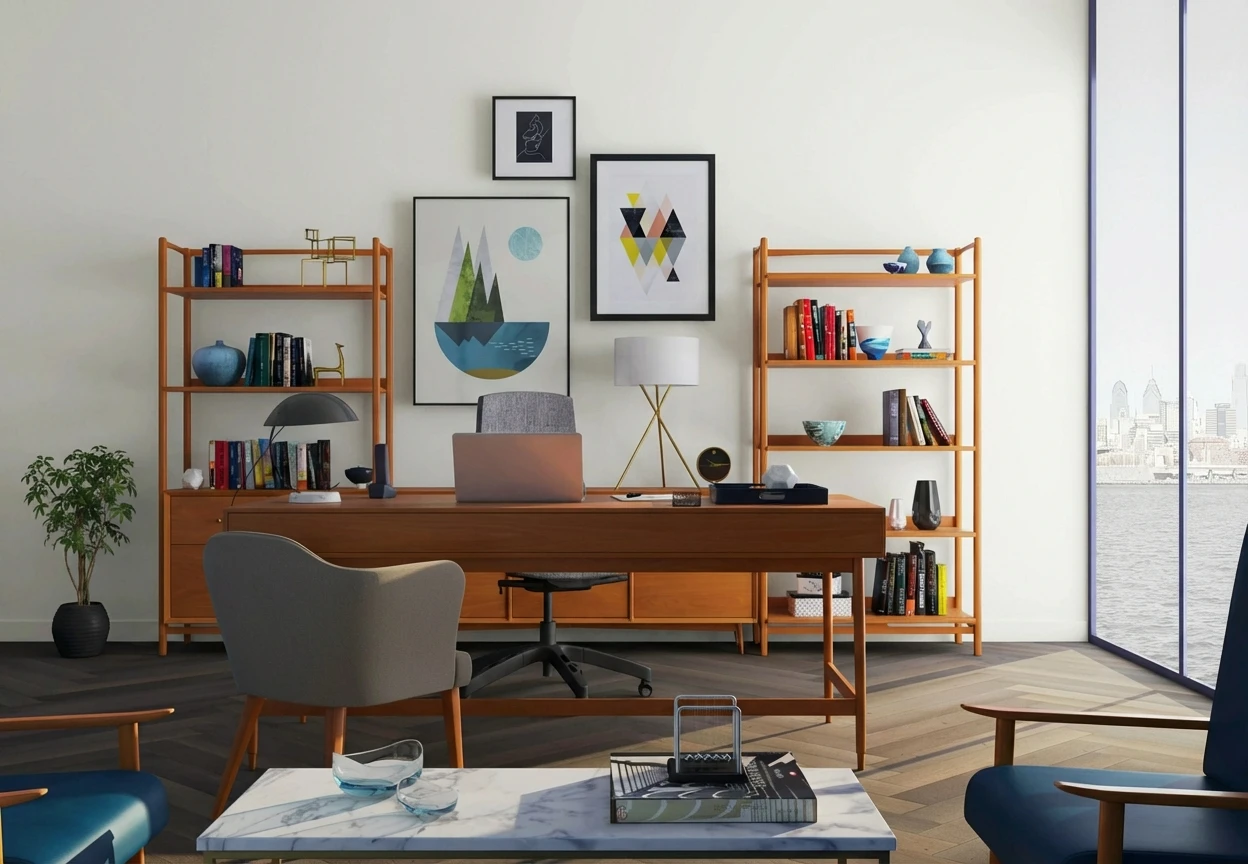
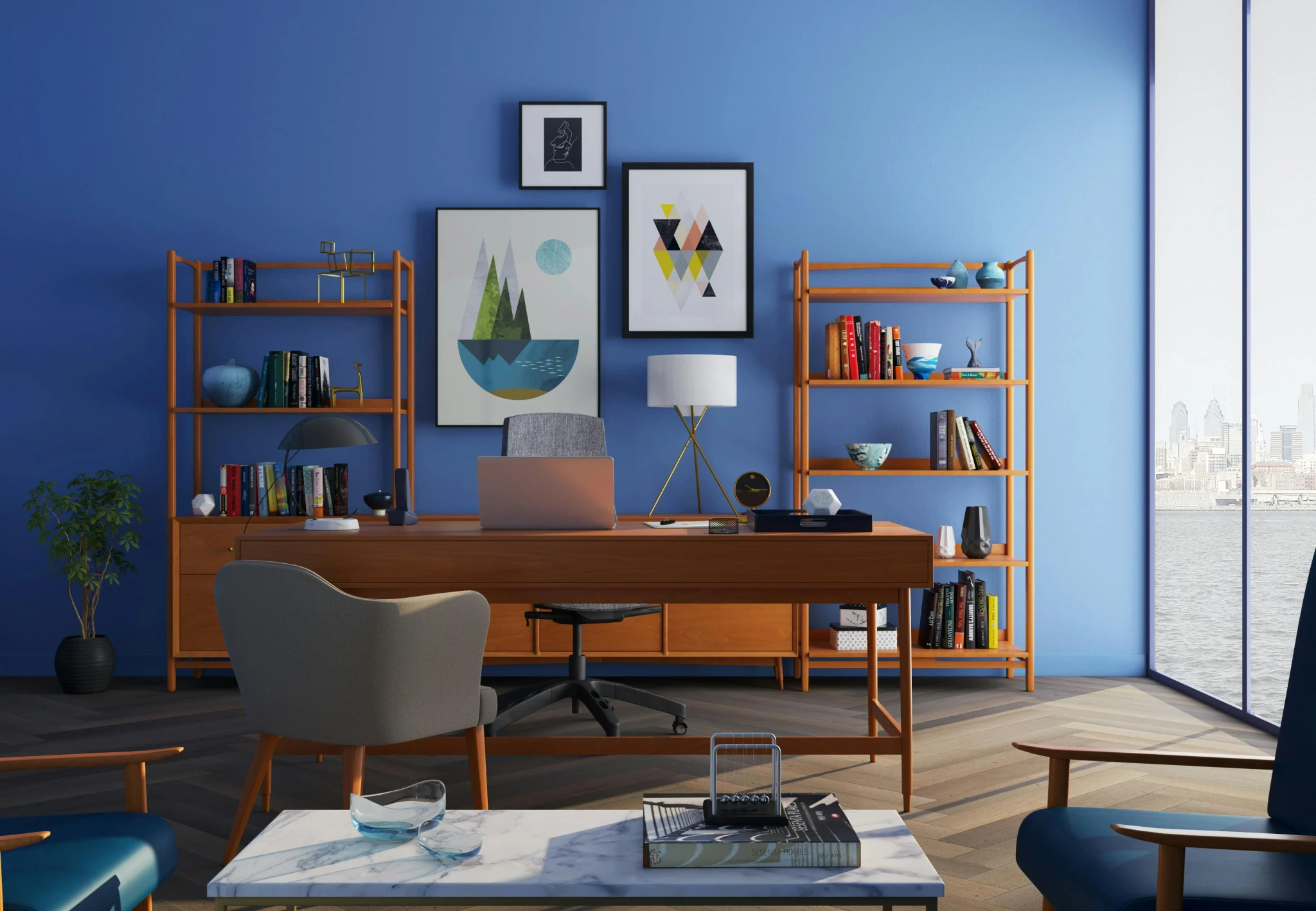
Housepaint AI uses computer vision to automatically identify interior surfaces, separating walls from cabinets, trim, ceilings, windows, doors, furniture, and architectural features. It uses state of the art techniques for simulating how light will behave in the space, preserving shadows near corners, brightness near windows, and the complex lighting typical of interior rooms.
Walls: Automatic wall detection without manual tracing. Accurately excludes trim, baseboards, crown molding, doors, and windows. Preserves lighting variations across different walls in the same room.
Cabinets: Detects kitchen and bathroom cabinets as a distinct element. Paint all cabinet fronts at once while preserving countertops, backsplash, appliances, and hardware.
Trim: Identifies baseboards, crown molding, window casings, and door frames as a unified trim category. Paint all trim independently from walls.
Ceilings: Detects ceiling surfaces separately from walls. Visualize colored ceilings or simply see how white ceilings coordinate with your wall color.
Windows: Detects interior window frames and mullions. Visualize matching or contrasting frame colors.
Doors: Interior doors are detected as distinct elements. Experiment with doors matching trim or serving as accent colors.
Strengths:
- Automatic detection of walls, cabinets, trim, ceilings, windows, and doors
- Paint each element independently or together
- Preserves furniture, artwork, flooring, countertops, and other fixed elements
- Preserves lighting variations—bright areas stay bright, shadows stay shadowed
- 17,500+ colors from Sherwin-Williams, Benjamin Moore, Behr, PPG, Farrow & Ball, Valspar
- Native iOS and Android apps
- Fast processing
Limitations:
- No manual editing
- Requires account creation
Interior Verdict: Excellent. Housepaint AI delivers the most comprehensive interior visualization, handling all six element types with automatic detection and realistic lighting.
Behr ColorSmart Visualizer
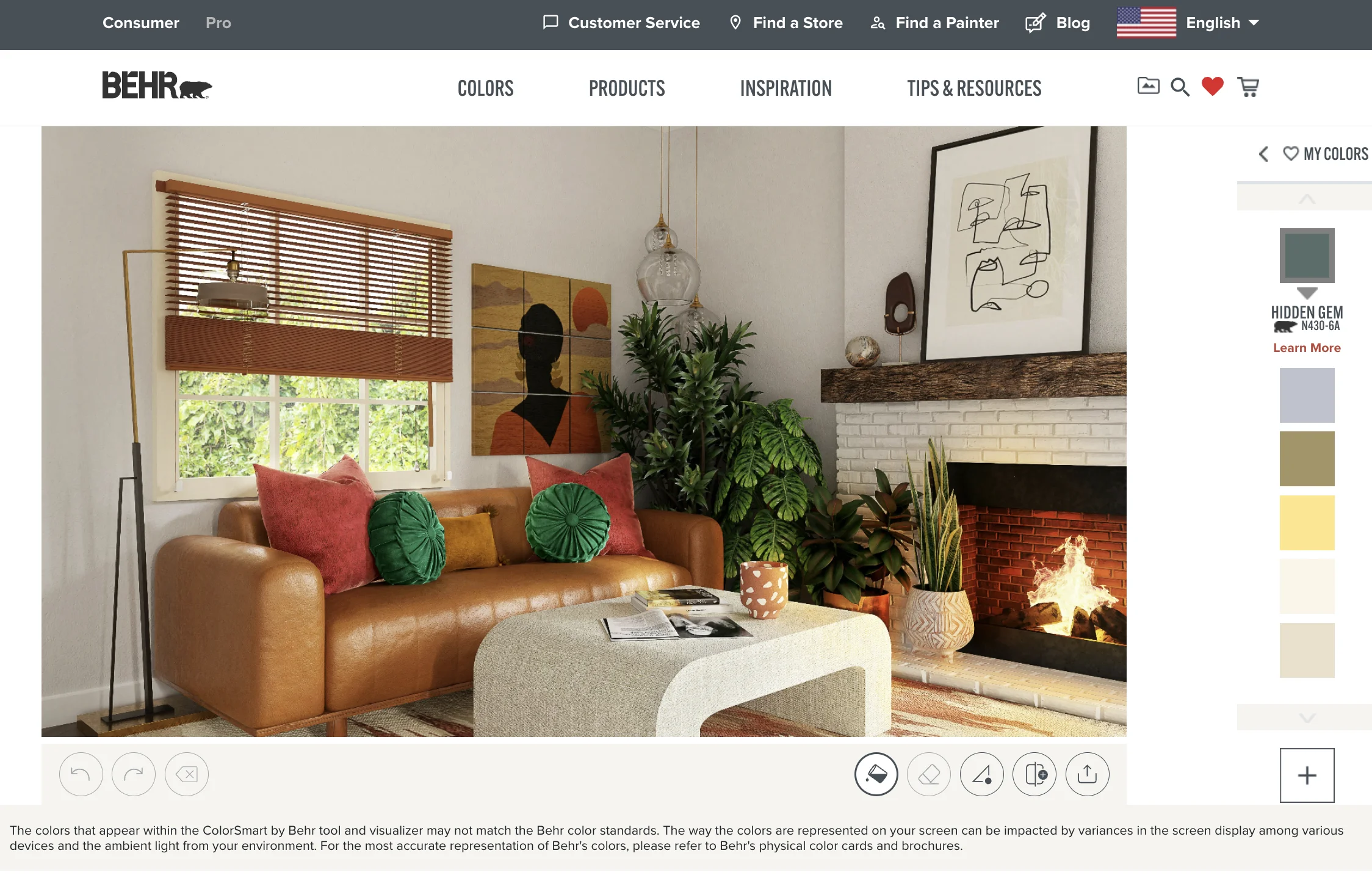
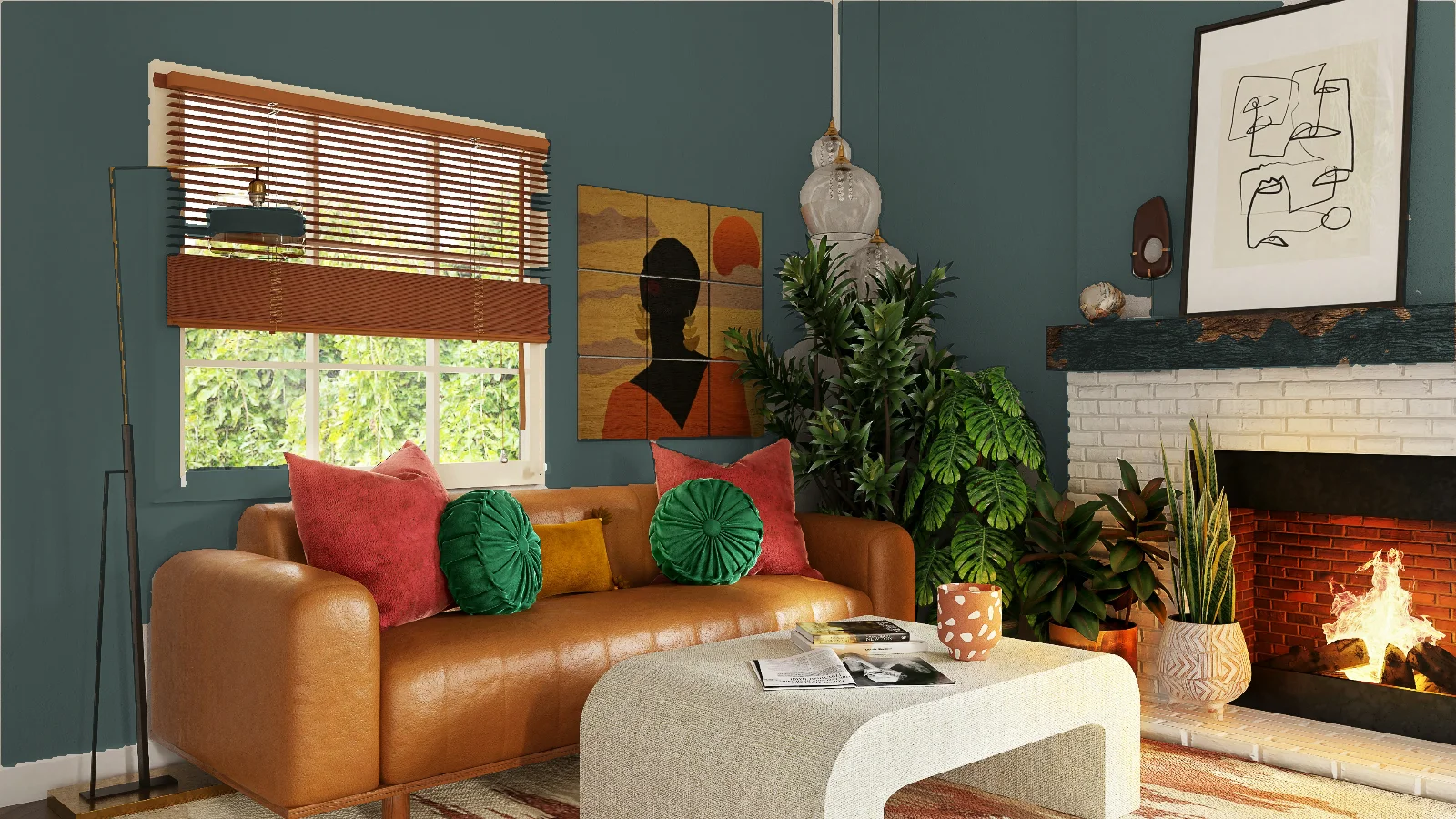
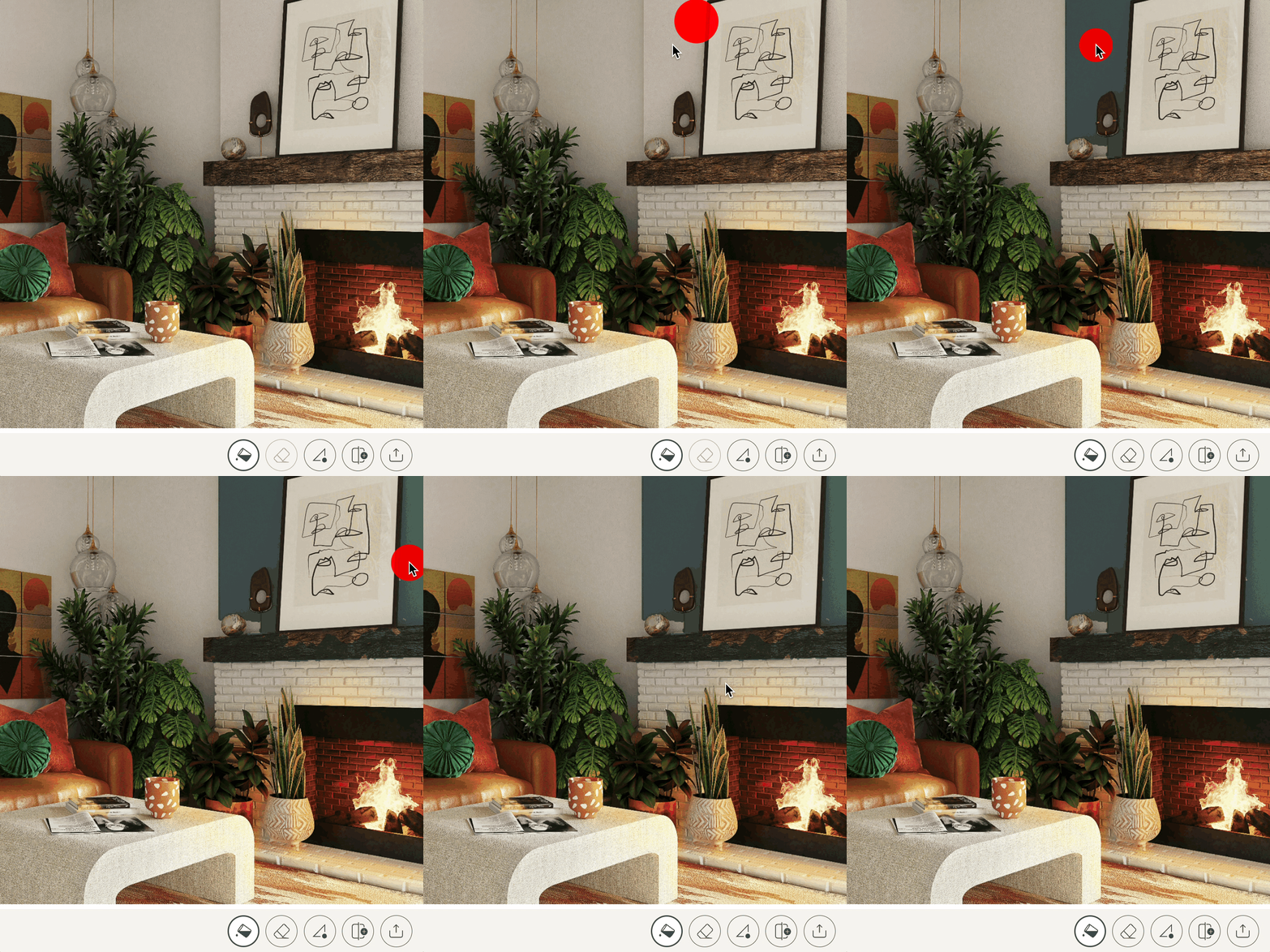
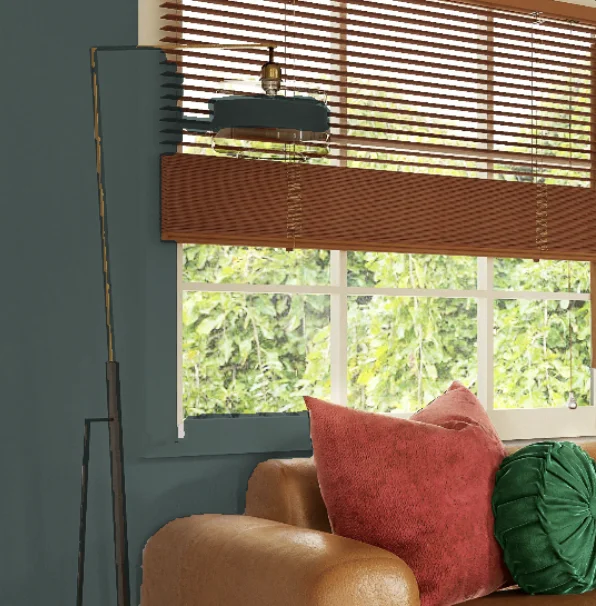
Behr's ColorSmart visualizer uses flood fill—click on an area and it fills regions of similar color. For interior projects with multiple elements, this becomes increasingly challenging as surfaces share similar colors.
Walls: Requires clicking each wall section separately. Flood fill frequently bleeds onto trim, doors, and ceiling when colors are similar. No light simulation.
Cabinets: Must click each cabinet door individually. Flood fill bleeds onto countertops, appliances, and backsplash. No way to paint "all cabinets" at once. Very tedious for kitchens with many cabinet doors.
Trim: Must click each trim piece individually. Flood fill struggles with narrow trim profiles and bleeds onto adjacent walls. Baseboards and crown molding are especially difficult.
Ceilings: Ceilings can be clicked, but flood fill frequently bleeds onto walls and crown molding since they often share similar colors. Large ceiling areas may require many clicks.
Windows: Window frames are too narrow for reliable flood fill selection. Expect extensive bleeding onto adjacent surfaces.
Doors: Doors are the most manageable element with flood fill, but panel details may require multiple clicks and bleed onto the door frame.
Strengths:
- Free to use
- Large Behr color library
- Quick to start
Limitations:
- Flood fill bleeds onto adjacent elements constantly
- Requires clicking each surface section individually
- Semi-transparent overlay doesn't simulate real paint
- No light simulation—shadows and highlights disappear
- Changing colors requires redoing all work
- Only supports Behr colors
- Web-only
Interior Verdict: Fair for walls alone. Can produce usable wall results with patience, but expect bleed-over and unrealistic lighting. Poor for cabinets, trim, ceilings, windows, and doors.
Benjamin Moore Personal Color Viewer
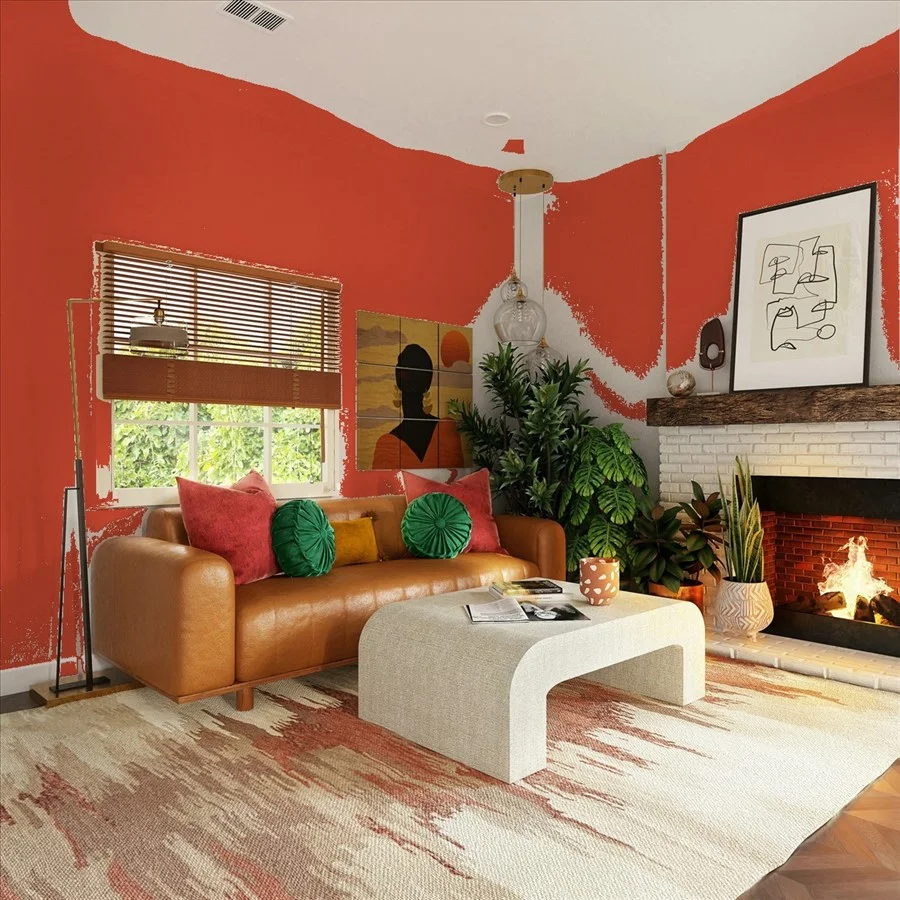
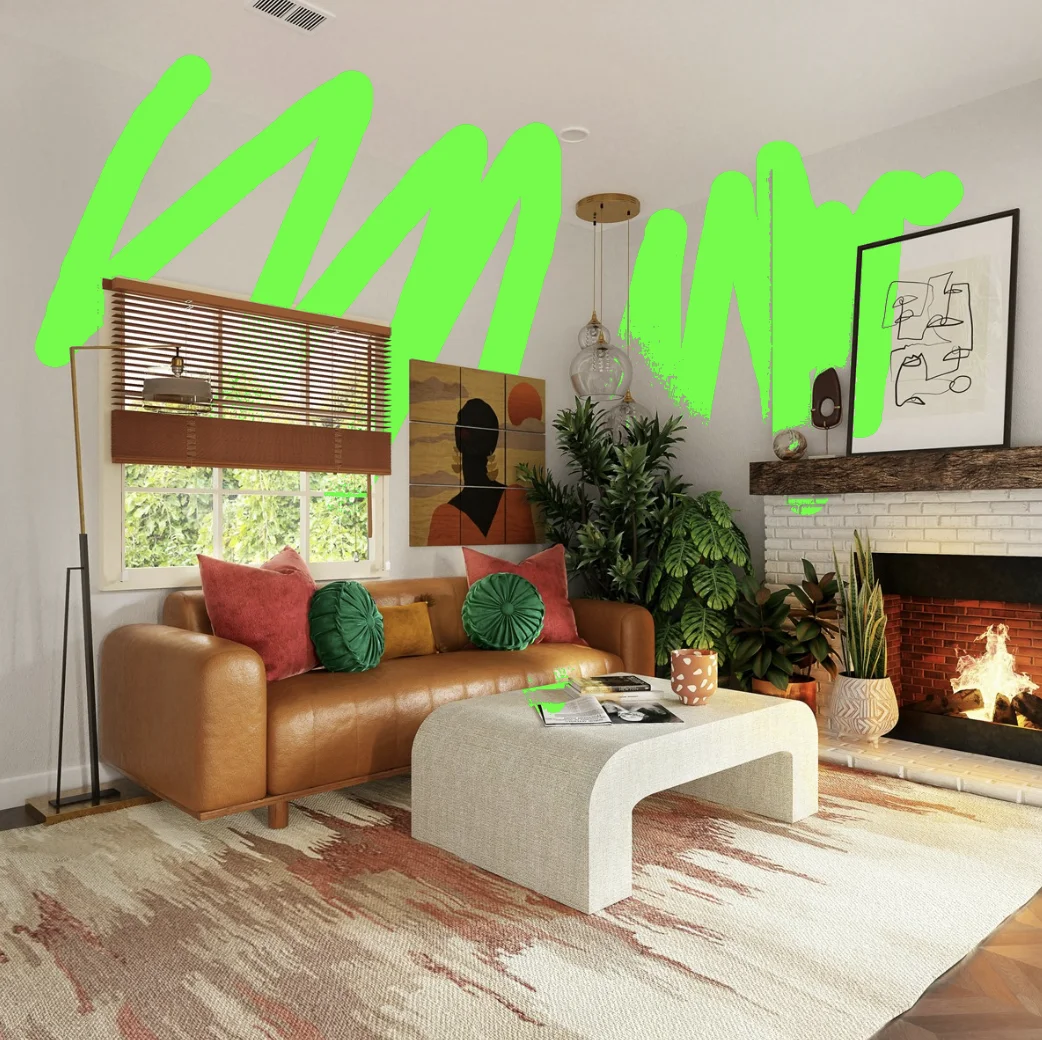
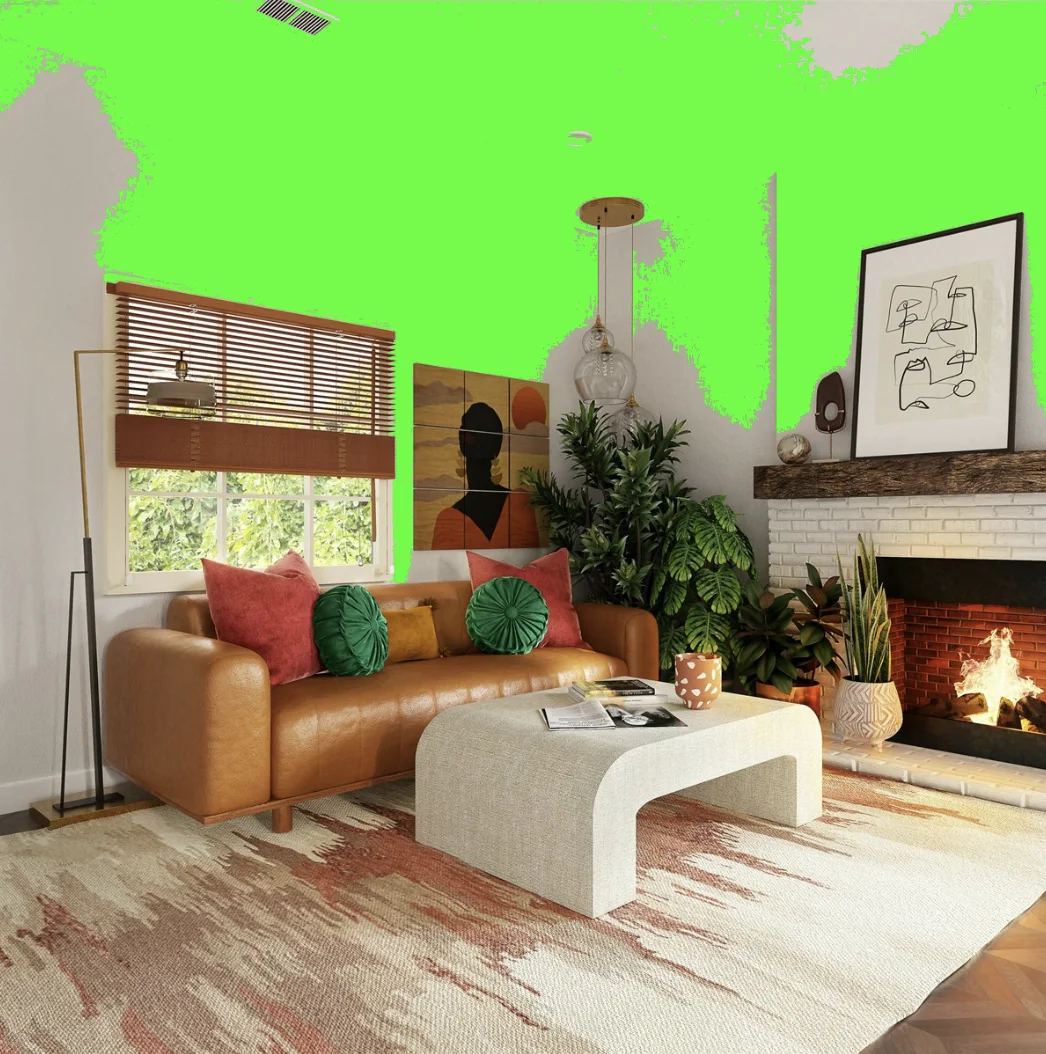
Benjamin Moore's Personal Color Viewer offers three masking tools: "Magic Brush" for brush-style painting, "Magic Selection" for flood fill, and "Shape" for polygon selection. The ability to create multiple masks and reuse them with different colors is helpful when coordinating walls, trim, and other elements.
Walls: Manual masking required. Magic Selection works best on walls but bleeds onto trim if colors are similar. Shape tool works well for rectangular wall sections.
Cabinets: Must paint each cabinet door individually with Magic Brush or polygon. No automatic cabinet detection. Tedious for kitchens with many doors and drawers.
Trim: Narrow trim profiles are difficult to mask accurately. Magic Brush requires careful painting along edges. Polygon tool can help with straight trim sections.
Ceilings: Ceilings can be masked, but the boundary between wall and ceiling is difficult to capture cleanly, especially without crown molding to define the edge.
Windows: Window frames must be masked manually. Small targets make this tedious and imprecise with any of the three tools.
Doors: Doors can be masked with the Shape polygon tool for reasonably clean results. Multiple masks allow coordinating door color with trim.
Strengths:
- Free to use
- Large Benjamin Moore color library
- Multiple selection tools (brush, flood fill, polygon)
- Reuse masks with different colors
- Shape tool works well for rectangular surfaces
- Adjustable tolerance via "Magic" slider
Limitations:
- Web-only—doesn't work on mobile devices
- Manual masking required for every element
- Must paint around adjacent surfaces manually
- No light simulation
- Only supports Benjamin Moore colors
- Requires account creation
Interior Verdict: Fair for walls. The masking tools offer decent control for wall sections, but manually masking cabinets, trim, ceilings, windows, and doors is tedious and imprecise.
Sherwin-Williams Color Visualizer
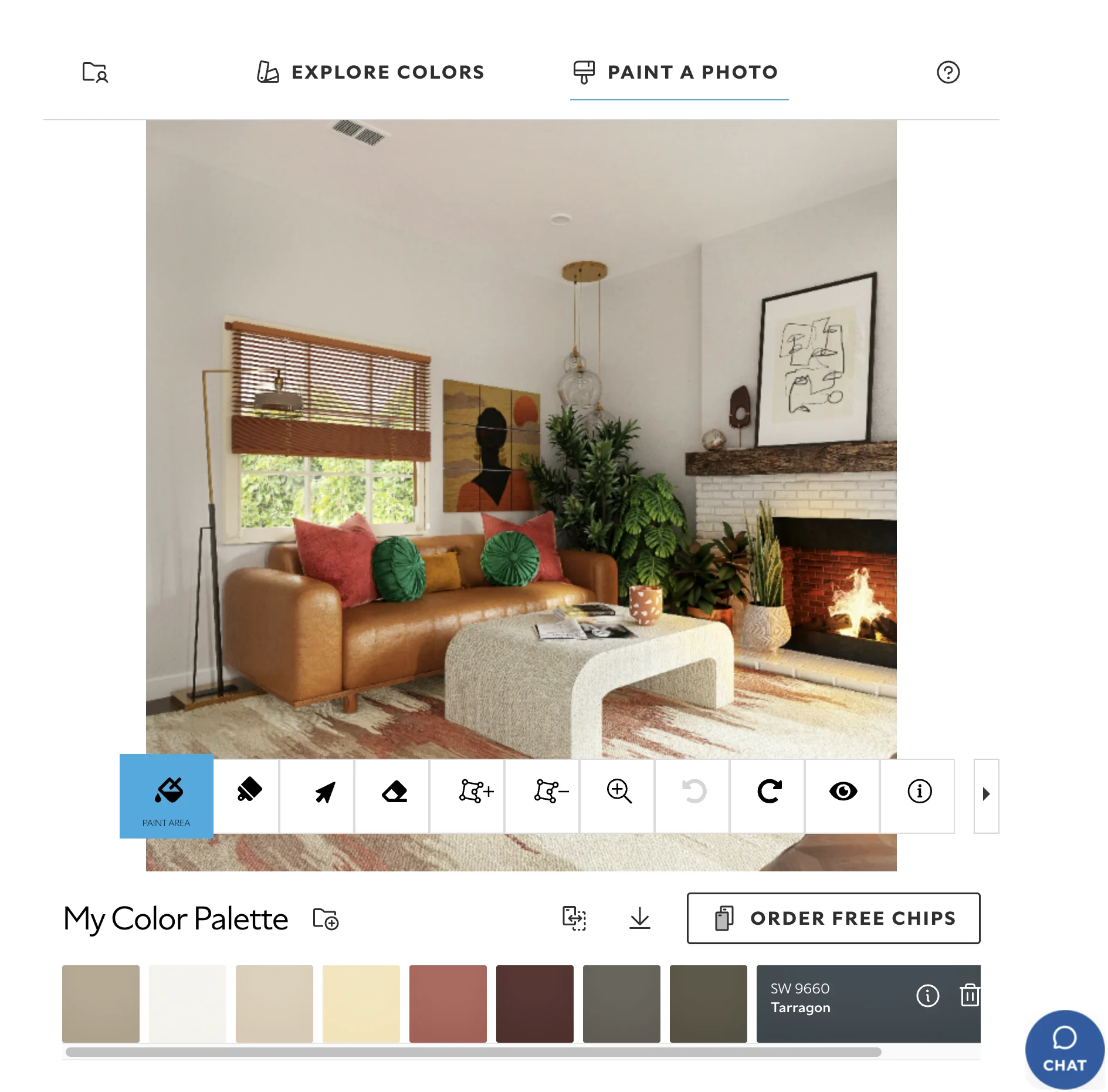
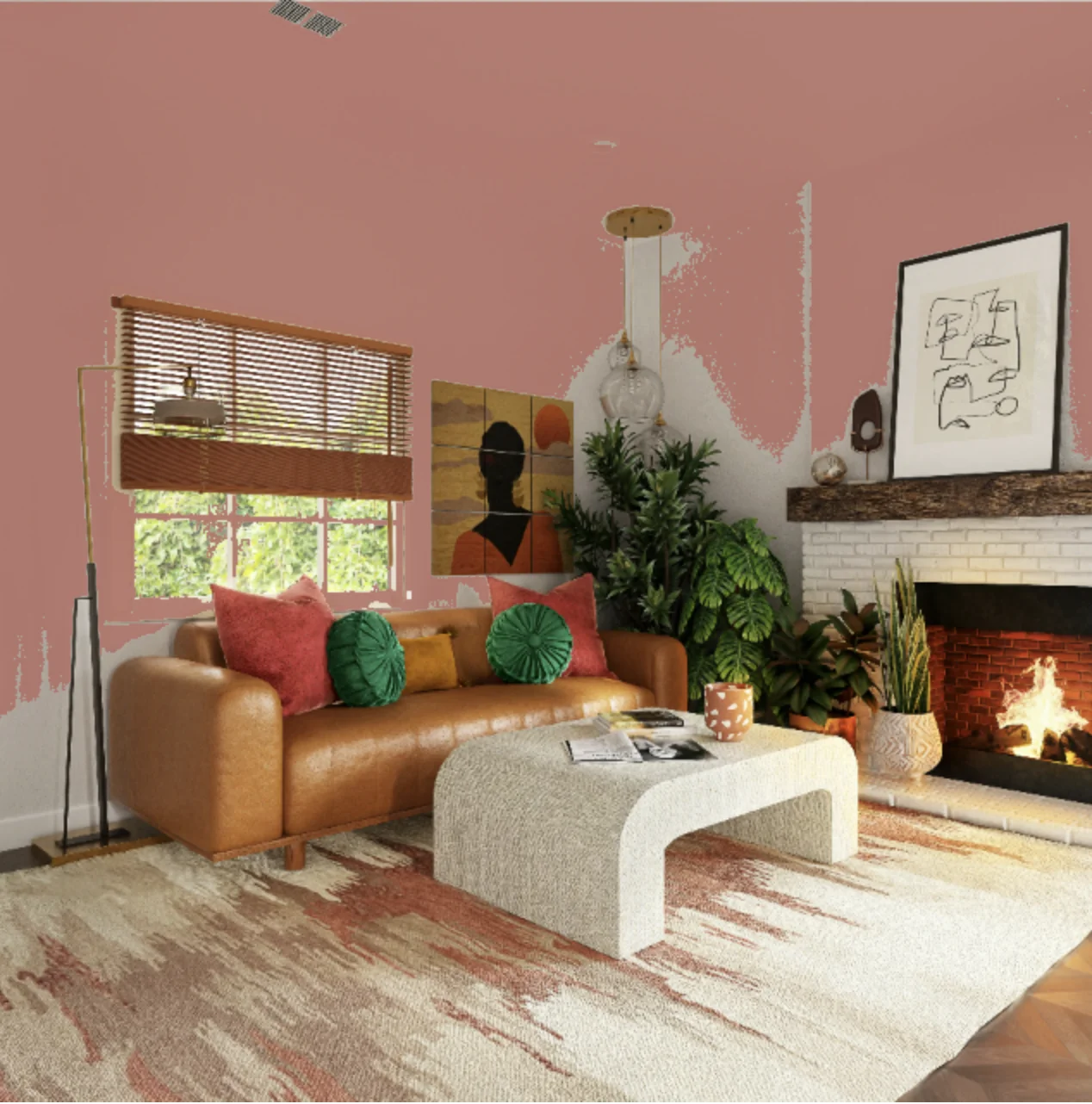
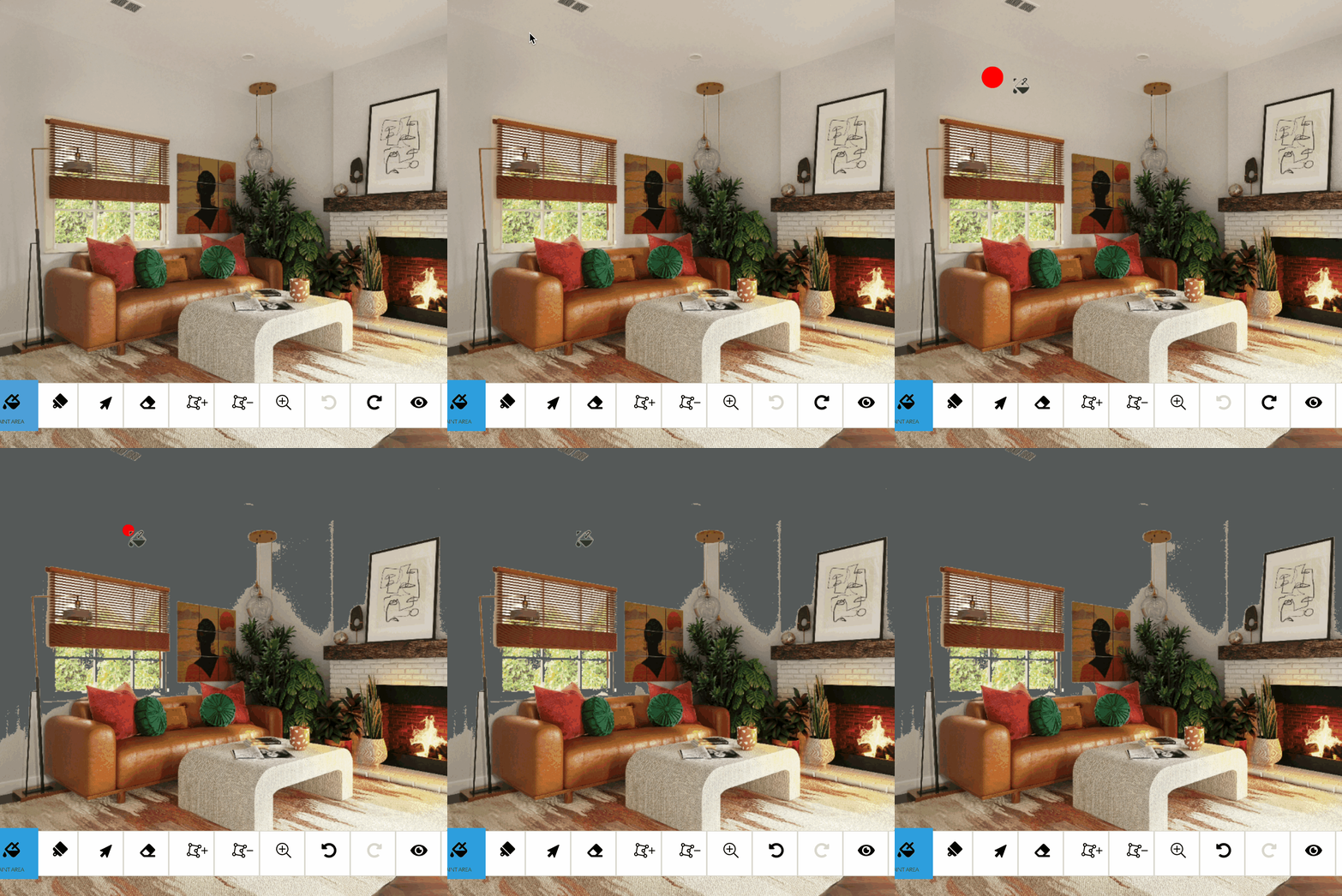
Color Visualizer is Sherwin-Williams' web-based tool that works similarly to Behr and Benjamin Moore—manual masking tools that require you to paint or select areas yourself.
Walls: Manual selection with partial auto-detection that commonly includes trim or misses wall sections. Requires cleanup.
Cabinets: Must be manually selected piece by piece. No cabinet-specific detection. Same tedious process as other manual tools.
Trim: Must be manually selected. Narrow profiles are difficult to capture cleanly.
Ceilings: Can be selected manually, but the wall-ceiling boundary is difficult to define without bleeding.
Windows: Window frames are too small for reliable manual selection.
Doors: Doors can be selected with the polygon tool for a reasonable result.
Strengths:
- Web-based, no download required
- Large Sherwin-Williams color library
Limitations:
- Similar manual masking approach as Behr, Benjamin Moore, and PPG
- Auto-detection commonly includes trim or misses wall sections
- No light simulation
- Only supports Sherwin-Williams colors
- Web-only
Interior Verdict: Fair for walls. Like Behr and Benjamin Moore, Color Visualizer relies on manual masking. Functional for walls if you're committed to Sherwin-Williams colors, but poor for cabinets, trim, ceilings, windows, and doors.
Sherwin-Williams Color Expert
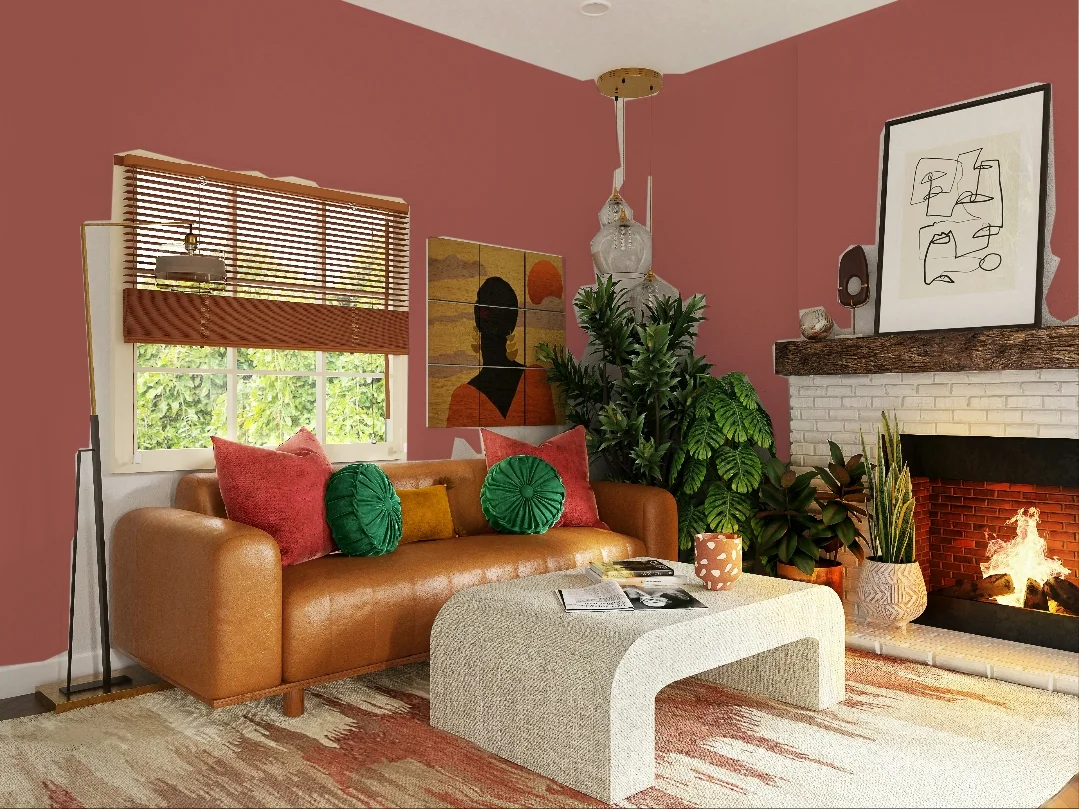
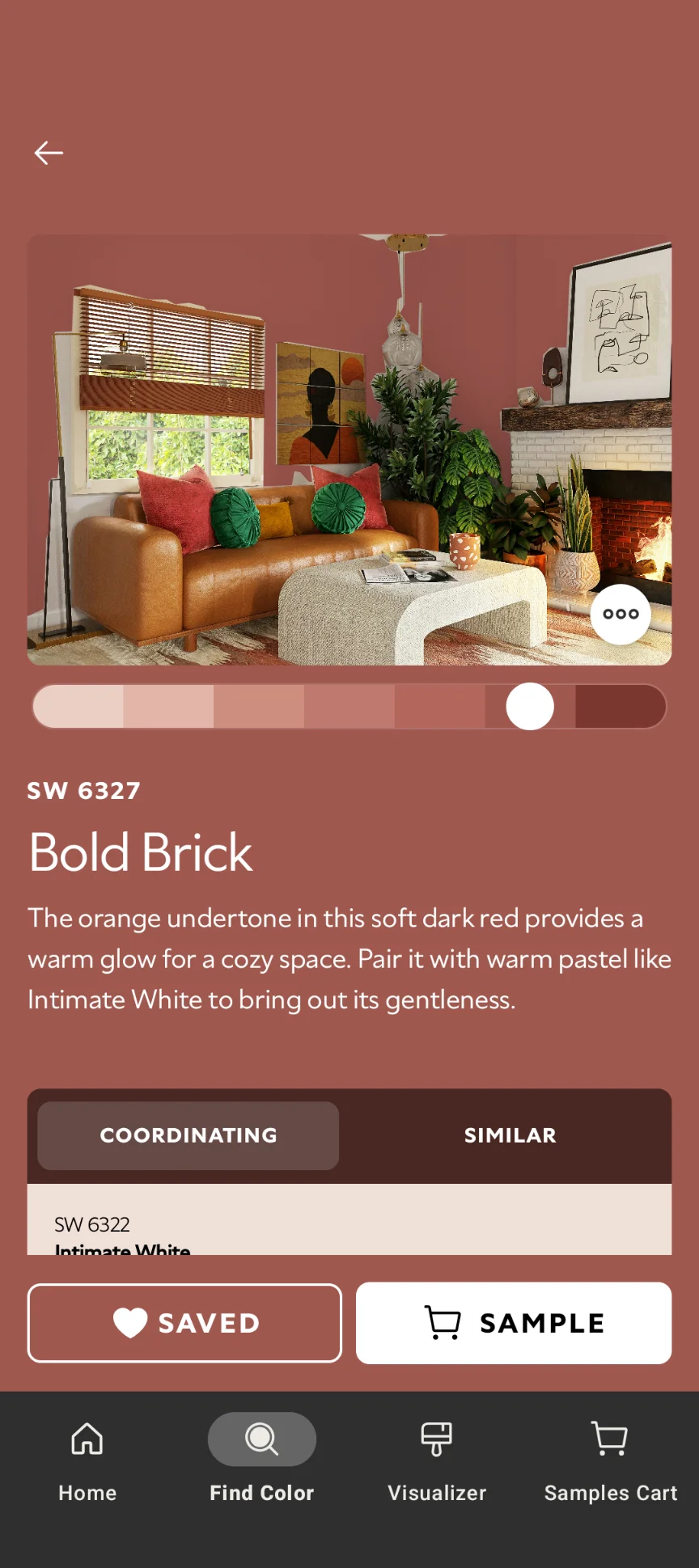
Color Expert is Sherwin-Williams' mobile app, using automatic masking technology for fast wall detection. It's designed specifically for walls and only walls.
Walls: Fast auto-detection (3-5 seconds). Designed specifically for this use case. Works well for straightforward rooms.
Cabinets: Not supported. Color Expert only detects and paints walls.
Trim: Not supported. Often accidentally paints over trim when trim color is similar to walls.
Ceilings: Not supported. Ceilings are not detected or paintable.
Windows: Not supported. Window frames cannot be visualized.
Doors: Not supported. Doors cannot be visualized.
Strengths:
- Native mobile apps for iOS and Android
- Fast auto-detection (3-5 seconds)
- Designed specifically for walls
- Fast color switching
Limitations:
- Only paints walls—no cabinets, trim, ceilings, windows, or doors
- Often paints over trim, especially if trim color is similar to walls
- Masking technique can miss complex wall shapes
- Only supports Sherwin-Williams colors
Interior Verdict: Good for walls only. Works well for straightforward wall visualization but cannot help with any other interior element.
PPG Color Visualizer
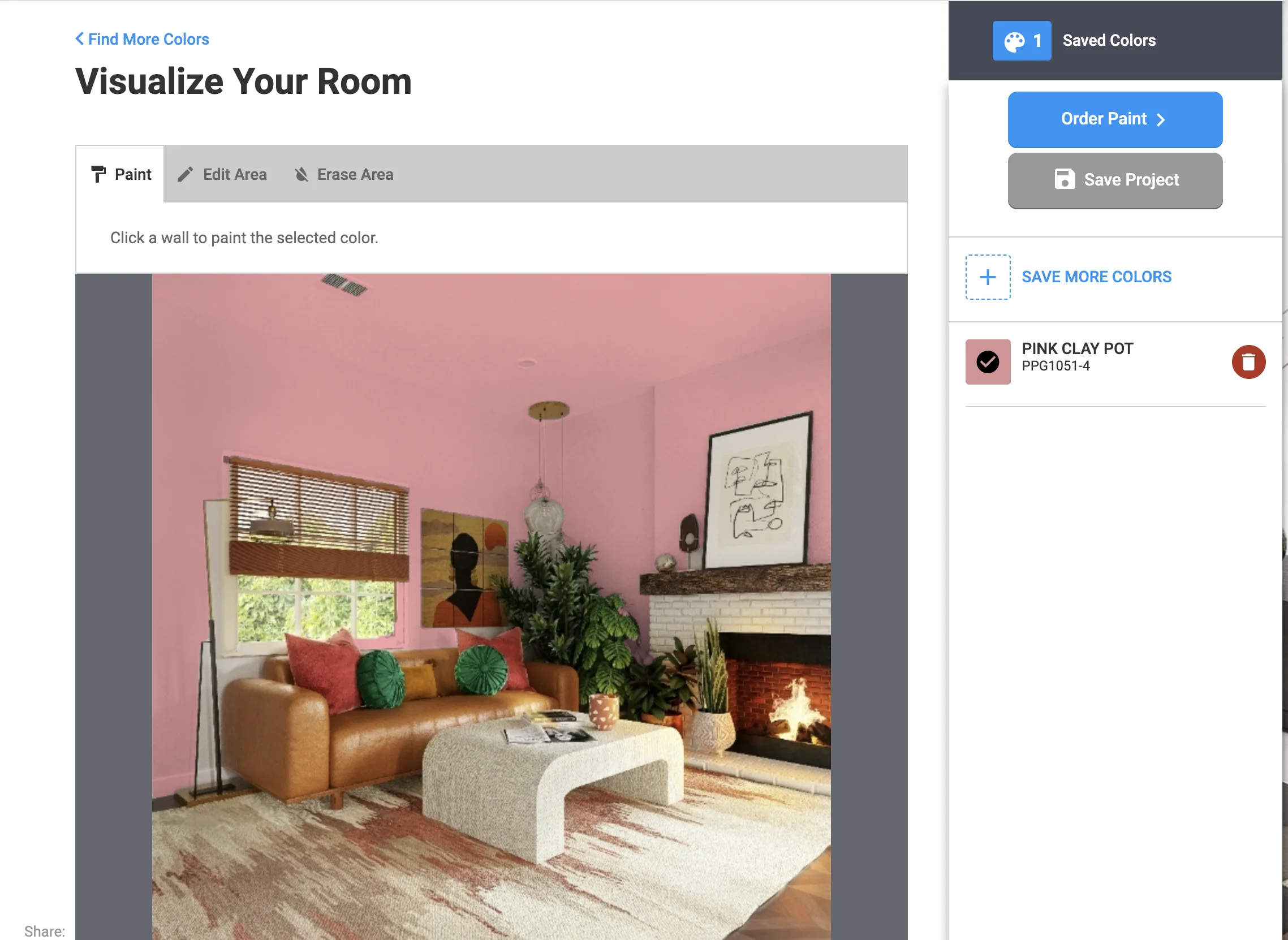
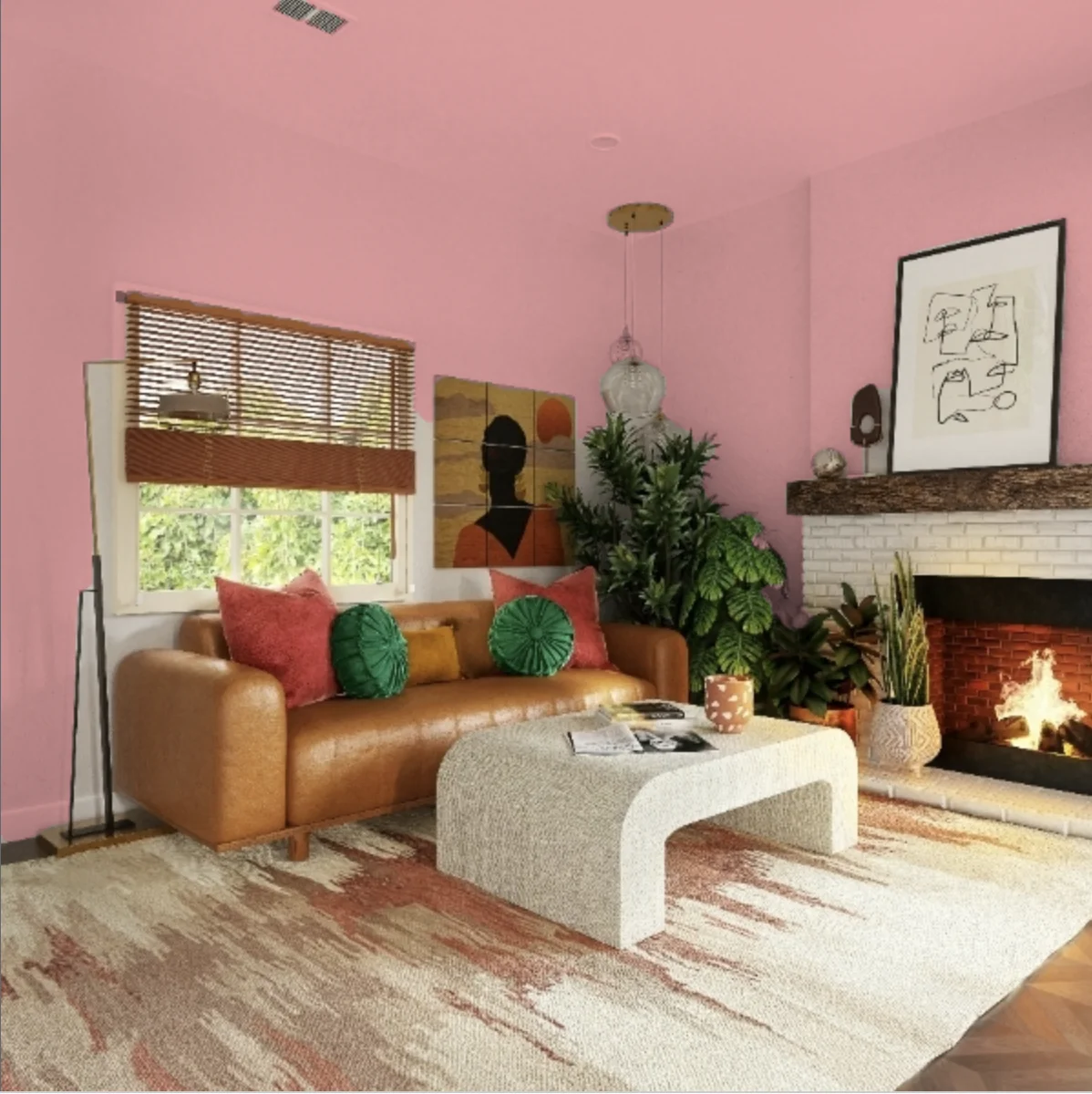
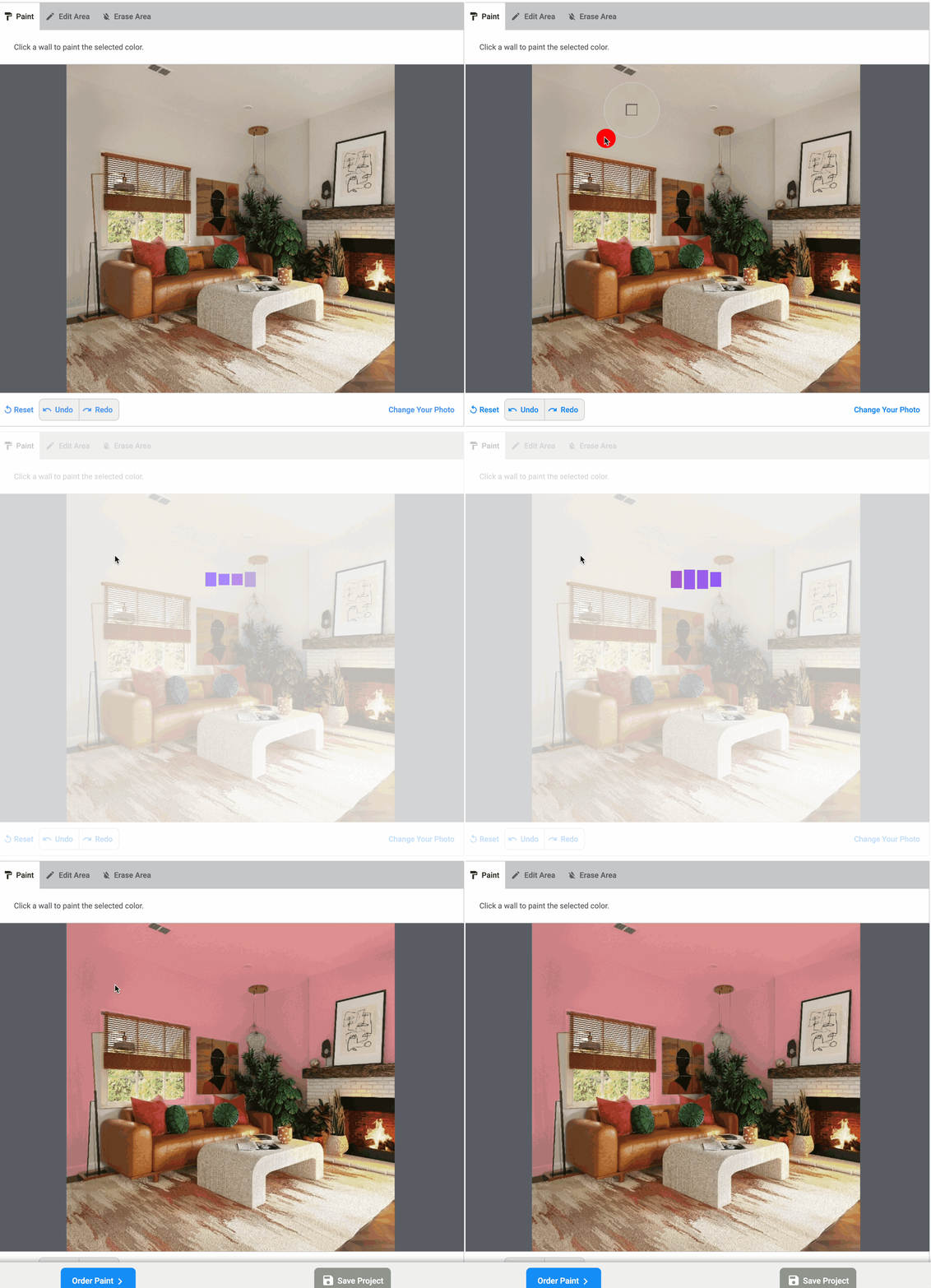
PPG's visualizer allows clicking on areas with auto-detection capabilities. The approach is general-purpose but very slow.
Walls: Can select wall areas with click-to-paint. Auto-detection available but slow and often inaccurate. Requires multiple attempts.
Cabinets: Can technically click on cabinet fronts, but each door requires a separate slow click. No cabinet-level detection.
Trim: Can technically click on trim pieces, but narrow profiles make selection unreliable. Slow processing compounds the frustration.
Ceilings: Ceilings can be clicked, but the slow detection and imprecise boundaries make this tedious.
Windows: Window frames are too narrow and small for reliable click-to-paint selection.
Doors: Doors can be selected, but each click requires several seconds of processing.
Strengths:
- Can select various interior surfaces
- Manual editing
- Has undo/redo
- Auto-detection available
- Supports mobile on the web
Limitations:
- Most operations are slow—several seconds per click
- Lighting simulation is inaccurate
- Undo/redo operations are very slow
- Only supports PPG colors
- Web-only
Interior Verdict: Fair for walls. Functional but frustrating due to slow speed. Poor for cabinets, trim, ceilings, windows, and doors.
Farrow & Ball Visualizer
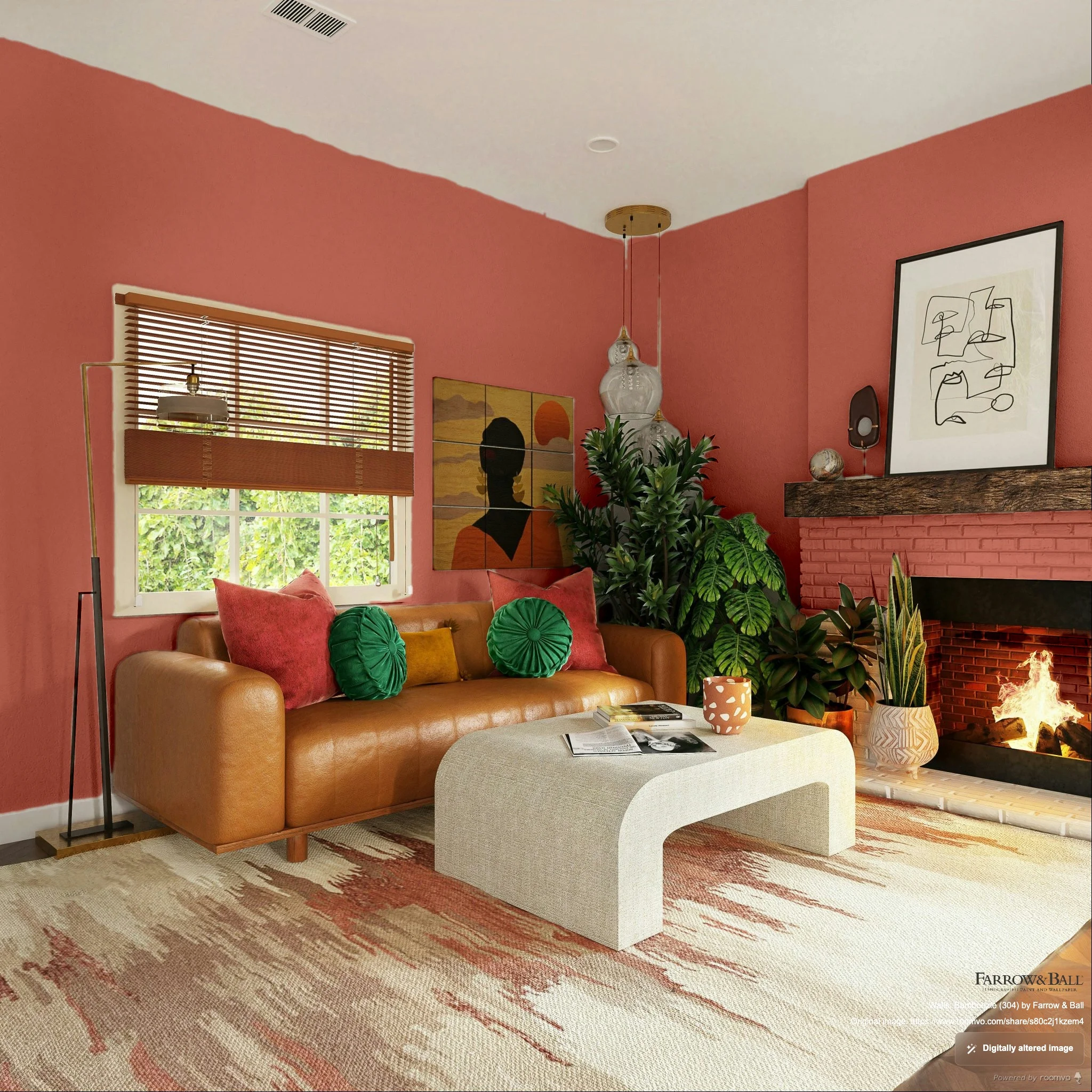
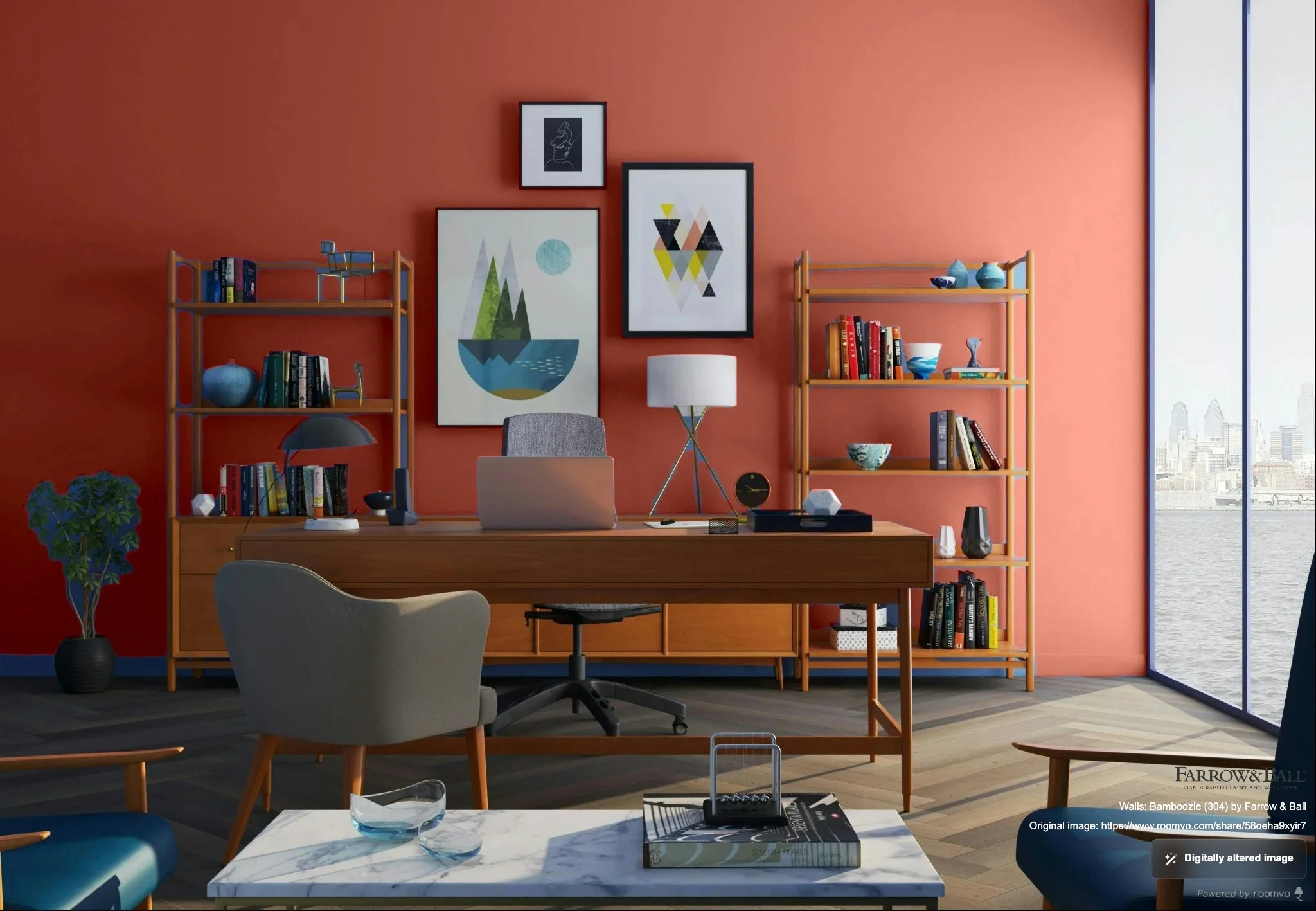
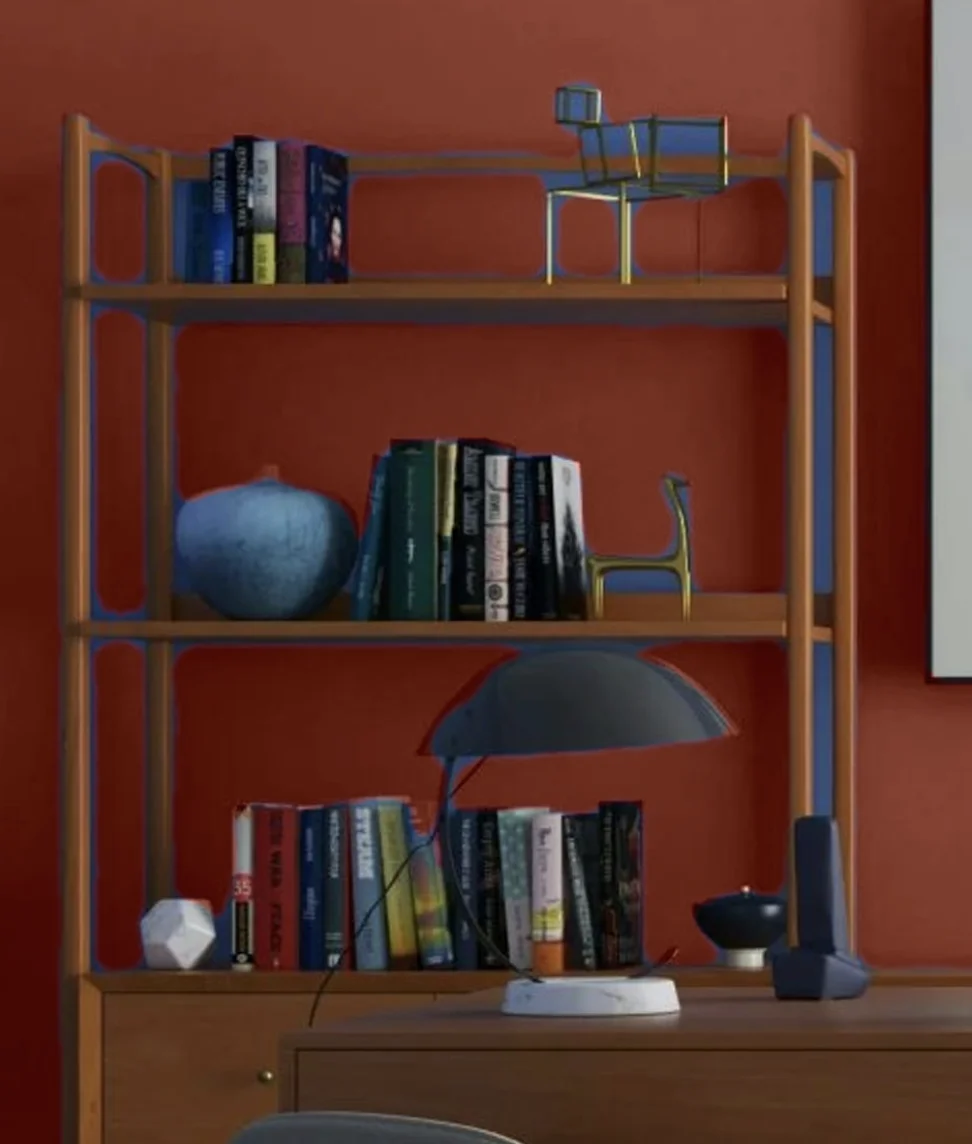
Farrow & Ball's visualizer uses similar masking technology to Color Expert, designed for their distinctive color palette. Like Color Expert, it focuses exclusively on walls.
Walls: Solid wall detection with automatic masking. Good quality for wall visualization with distinctive Farrow & Ball colors.
Cabinets: Not supported. The visualizer only detects and paints walls.
Trim: Not supported. May accidentally paint over trim in some photos when trim and wall colors are similar.
Ceilings: Not supported. Ceilings are not detected or paintable.
Windows: Not supported. Window frames cannot be visualized.
Doors: Not supported. Doors cannot be visualized.
Strengths:
- Solid wall detection
- Good quality for wall visualization
- Distinctive Farrow & Ball color palette
Limitations:
- Only paints walls—no cabinets, trim, ceilings, windows, or doors
- Uses masking technique with similar limitations to Color Expert
- May paint over trim in some photos
- Web-only
- Only supports Farrow & Ball colors
Interior Verdict: Good for walls with F&B colors. If you're specifically exploring Farrow & Ball's palette for walls, it works well. Cannot help with any other interior element.
Hover
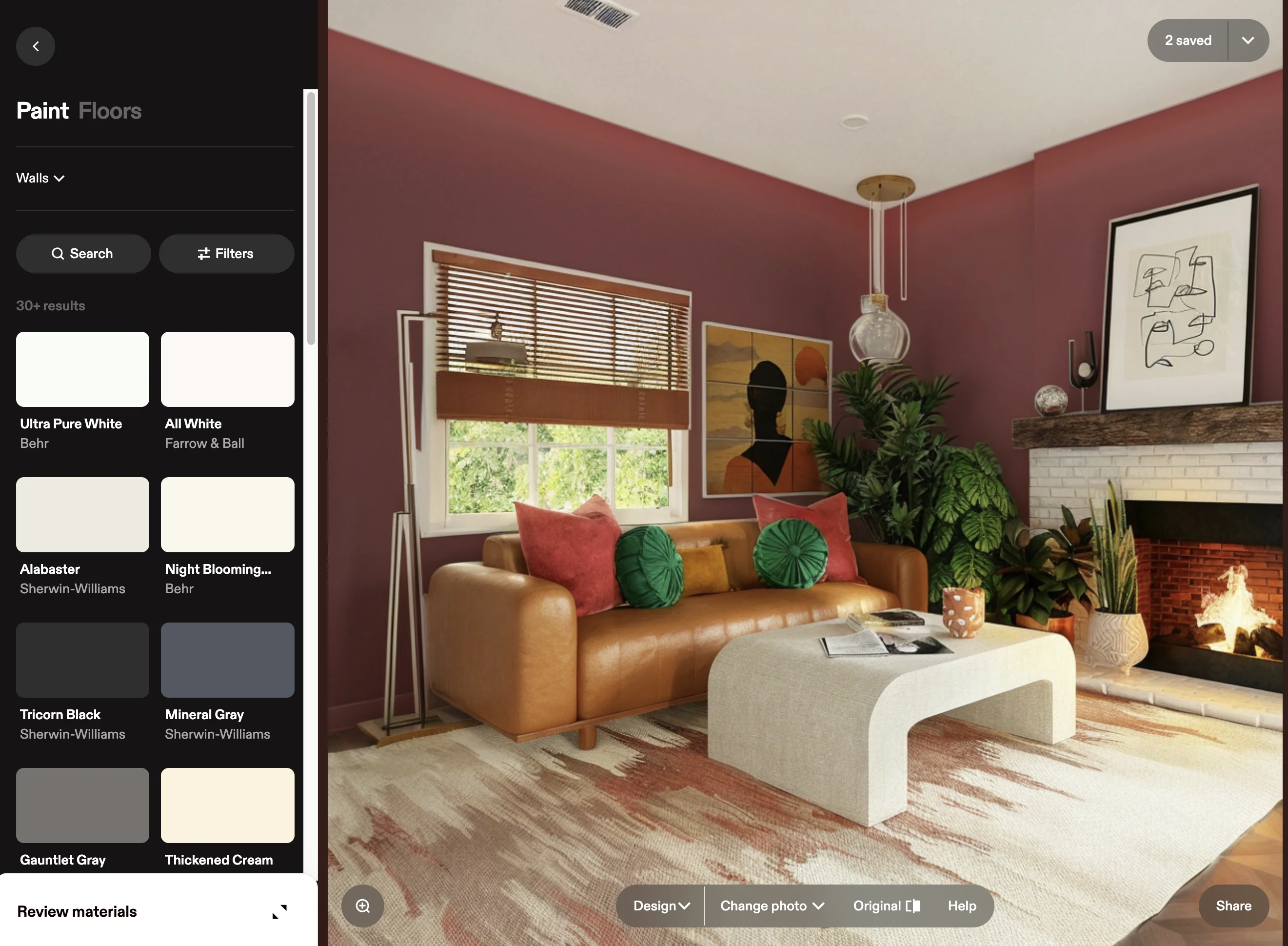
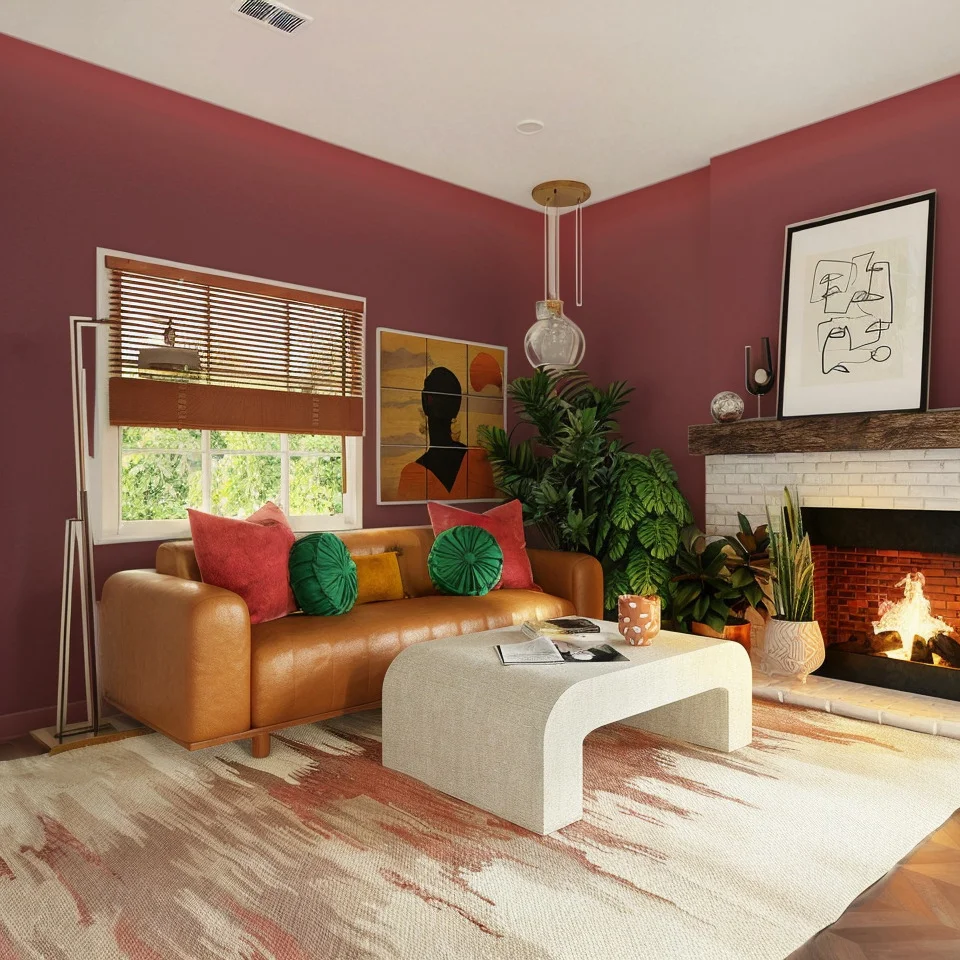
Hover is primarily designed for exterior projects but can handle some interior visualization. Its interior capabilities are secondary to its exterior focus.
Walls: Automatic wall detection is available but less accurate than its exterior detection. Lighting can be inaccurate for interior spaces.
Cabinets: Interior cabinet detection is inconsistent. Hover's strength is exterior elements, not kitchen-specific surfaces.
Trim: Interior trim detection is limited. May struggle to distinguish trim from walls in some rooms.
Ceilings: Ceiling detection is available but inconsistent for interior spaces.
Windows: Interior window frame detection is limited compared to its exterior window capabilities.
Doors: Interior door detection is available but not as reliable as its exterior door detection.
Strengths:
- Clean-feeling interface
- Automatic detection available for some interior elements
- Some lighting simulation
Limitations:
- Primary focus is exterior—interior is secondary
- Inaccurate lighting for interior spaces
- Inconsistent detection of cabinets, trim, ceilings
- No manual editing to fix detection errors
- Limited color selection
- Web-only
Interior Verdict: Limited. Hover's strength is exteriors. Interior visualization is available but detection and lighting are less reliable than dedicated interior tools.
Feature Deep Dive
Multi-Element Interior Coordination
The key to a cohesive interior is seeing how all elements work together:
- Walls and trim: The most fundamental relationship. White trim with colored walls is classic; matching trim and walls creates a modern look.
- Walls and cabinets: In kitchens and bathrooms, the wall-cabinet color relationship defines the room's feel.
- Walls and ceiling: A white ceiling opens up the space; a colored ceiling adds drama and coziness.
- Doors and trim: Usually matching, but contrasting doors are becoming popular.
Comprehensive: Housepaint AI lets you paint walls, cabinets, trim, ceilings, windows, and doors independently, then see them together to evaluate coordination.
Walls only: Color Expert and Farrow & Ball can only show wall colors, missing the critical cabinet, trim, and ceiling questions.
Tedious multi-select: Behr ColorSmart, Benjamin Moore, Color Visualizer, and PPG technically allow selecting multiple elements but require clicking each surface individually.
Cabinet Visualization
Cabinet painting is one of the most transformative interior projects—and one of the hardest to visualize:
Automatic: Housepaint AI detects cabinet fronts as a unified category. Paint all cabinets at once while preserving countertops, backsplash, and hardware.
Manual struggle: Behr ColorSmart, Benjamin Moore, Color Visualizer, and PPG require clicking each cabinet door individually—a kitchen with 20 doors means 20+ tedious clicks with frequent bleed onto countertops and adjacent surfaces.
Not supported: Color Expert, Farrow & Ball, and Hover (inconsistently) don't support cabinet visualization.
Ceiling and Trim Detection
Ceilings and trim are subtle but critical elements:
Automatic: Housepaint AI detects ceilings and trim as separate categories, letting you experiment with colored ceilings or coordinating trim colors.
Walls only: Color Expert and Farrow & Ball detect walls but frequently bleed onto trim when colors are similar. They don't detect ceilings at all.
Manual: Behr ColorSmart, Benjamin Moore, Color Visualizer, and PPG require manual selection of trim and ceiling areas—narrow trim is especially difficult to mask cleanly.
Light Simulation
Interior light dramatically affects how paint colors appear. Corners are shadowed, areas near windows are brighter, and rooms with different light sources create complex lighting environments.
Realistic: Housepaint AI preserves the actual lighting from your photo, showing how paint will look in your room's specific light conditions across all surfaces.
Partial: Color Expert, Hover, and Farrow & Ball's masking technique preserves some lighting information on walls.
Flat: Behr ColorSmart, Color Visualizer, Benjamin Moore, and PPG apply relatively flat color that doesn't reflect how paint actually behaves in varied interior lighting.
The Cost Factor: Why Interior Visualization Matters
Interior painting adds up quickly when you consider all the elements:
- Professional wall painting: $300-$800 per room
- Professional cabinet painting: $3,000-$5,000 for a typical kitchen
- Professional trim painting: $1-$3 per linear foot
- Ceiling painting: $150-$350 per room
- DIY materials: $100-$200 per room for walls; $500-$800 for cabinet materials
- Repainting: Full cost again if you choose wrong
Beyond direct costs, interior colors affect how you feel in your home daily. The wrong wall color makes rooms feel smaller or darker. Mismatched cabinets and walls create visual tension. Quality visualization across all elements helps you build a cohesive scheme before committing.
Our Recommendation
For comprehensive interior visualization, Housepaint AI delivers the best overall experience with automatic detection of all six element types, realistic lighting, and multi-brand color support. It's the only tool that lets you plan a complete interior color scheme—walls, cabinets, trim, ceilings, windows, and doors—without manual tracing.
If you only need to visualize wall colors:
- Sherwin-Williams Color Expert (mobile) works well for straightforward wall visualization
- Farrow & Ball handles walls solidly if you're exploring their palette
- Behr ColorSmart, Benjamin Moore, or PPG are functional for walls but require more manual work
For the most realistic preview that shows how paint will actually look across all your interior surfaces, Housepaint AI is the top choice.
Try Housepaint AI for Your Interior
Ready to find your perfect interior color scheme? Housepaint AI handles the full complexity of interior visualization—walls, cabinets, trim, ceilings, windows, and doors.
Explore by element:
Download free for iPhone & iPad or Android.
This comparison was conducted in March 2026. Visualizer features and capabilities may change over time.